Overview of inventory properties and how to review them from the Item Master.
| IN THIS TOPIC |
The table below includes guidance about specific inventory properties in the Item Master, as well as guidance on how you can adjust them when needed.
Before you start
To make changes to the Item Master, you need the Inventory Control user role assigned in Flexe. To learn more about managing user roles, go to Managing Warehouse Users & Roles.
Only the shipper and the Flexe Support team can make other changes to the Item Master (e.g. enabling or disabling features for an item). If you need help with other changes, reach out to your Flexe Logistics Analyst or contact us at support@flexe.com.
Note: If there’s an item property that looks to have been enabled/disabled in error, it’s important to contact us at support@flexe.com so we can notify the shipper to confirm or make modifications if needed.
Inventory Property Guide
The steps for editing inventory properties differ depending on whether you're editing an individual item or multiple items at once in a CSV file:
Editing a Single Item
For guidance on making changes, refer to the Edit from the SKU Details sections in the table. To learn more, go to Editing a Single Item from the SKU Details.
Editing Multiple SKUs via CSV
For guidance on making changes, refer to the Edit via CSV Upload sections in the table. To learn more, go to Editing Multiple Items via CSV Upload.
|
SKU
Adjust the alphanumeric code used to identify product. |
Edit from the SKU Details
Use the SKU field to enter or change the code.
|
|
Edit via CSV Upload
Use the sku column to enter or change the code. |
|
|
Alternate ID
Use this field to enter alternate product codes or inventory identifiers (e.g. DCPIs). Note: This property is only available if it has been enabled for your company.
|
Edit from the SKU Details
Use the Alternate ID field to enter or change the code.
|
|
Edit via CSV Upload
Use the alternate_id column to enter or change the code. |
|
|
Dimensions
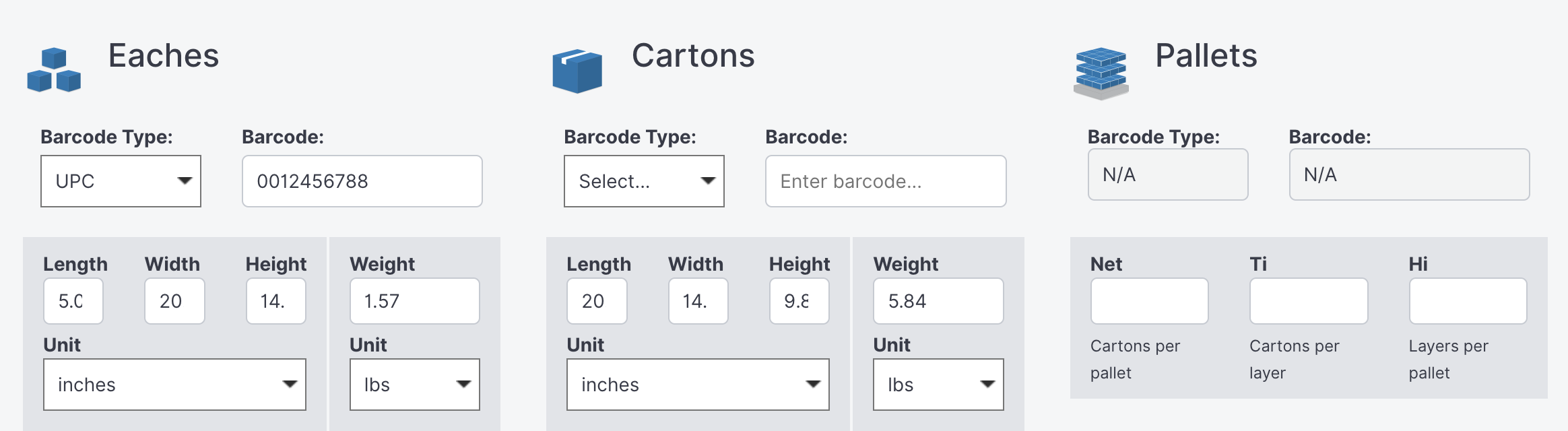
You can input SKU weights and dimensions for each unit of measure (eaches, cartons and pallets). This allows for effective load planning on the warehouse side; it also supports accurate label generation and helps determine shipping costs. Note: It's important to keep dimensions information as accurate as possible, as this affects billing and shipping costs. If you need help making adjustments, contact us support@flexe.com. |
Edit from the SKU Details
Use the relevant dimension field(s) under each unit of measure (Length, Width, Height, Weight, etc.) to enter values and/or specify dimension units.
|
|
Edit via CSV Upload
Each unit of measure has corresponding columns you can use to enter dimension values and units (carton_width, carton_height, carton_length, carton_weight, etc.) |
|
|
Hazmat
Use to identify a SKU as hazardous material; this will in turn require specific labels to be applied during shipping. |
Review from the SKU Details
The Hazmat Classification can only be managed by the shipper. But it's important understand regulations you must adhere to for hazmat items. Here's a quick overview of hazmat specifications that you can review from the SKU details:
Note: If an item you're handling at the warehouse isn't designated hazmat in the Item Master, but you believe that it requires hazmat labeling, contact us at support@flexe.com for additional help. |
|
Review via CSV
The hazmat column specifies whether the item should be designated hazmat. Y is entered for yes, N is entered if not. Here's an overview of the other hazmat specification columns:
|
|
|
Shipalone
Use to specify whether the SKU should ship entirely by itself. This means that an individual shipment will be created anytime this SKU is shipped. |
Edit from the SKU Details
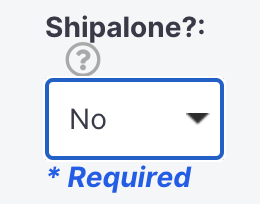
Use the Shipalone? dropdown under Eaches and Cartons. Select Yes if the item can ship alone, or select No if not.
|
|
Edit via CSV Upload
Use the carton_shipalone column for cartons, and the each_shipalone column for eaches. Enter Y if the item can ship alone or N if not. |
|
|
Ship As Is
Use to specify whether the item can ship in its original product packaging, and does not require overboxing. Note: If you notice a SKU is marked incorrectly (e.g. it's set as ship as-is but clearly requires overboxing) contact us at support@flexe.com. |
Edit from the SKU Details
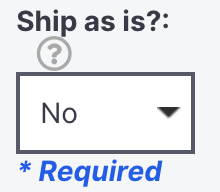
Use the Ship as is? dropdown under Eaches and Cartons. Select Yes if the item can ship as-is, or select No if not.
|
|
Edit via CSV Upload
Use the carton_ship_as_is column for cartons, and the each_ship_as_is column for eaches. Enter Y if the item can ship alone or N if not. |
|
|
Stackable
Specify whether items stored on pallets can be stacked on top of each other at in storage locations; this property also displays on pallet labels. Note: This property does not indicate the degree of stacking (i.e. whether goods can be triple stacked). Anything beyond double stacking should be confirmed with the shipper first). |
Edit from the SKU Details
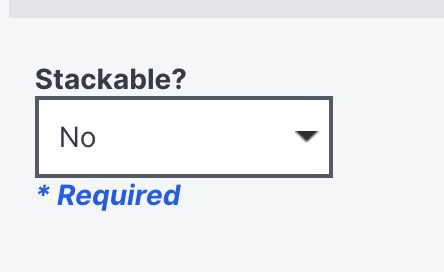
Use the Stackable? dropdown under Pallets. Select Yes if the item is stackable, or No if it is not.
|
|
Edit via CSV Upload
Use the stackable column. Enter Y if the item is stackable, or N if it is not. |


Comments
0 comments
Please sign in to leave a comment.