How to view and manage settings for carrier accounts you've linked to Flexe.
| IN THIS TOPIC |
You can view and manage carrier accounts you've added to Flexe from the Carrier Accounts Settings page.
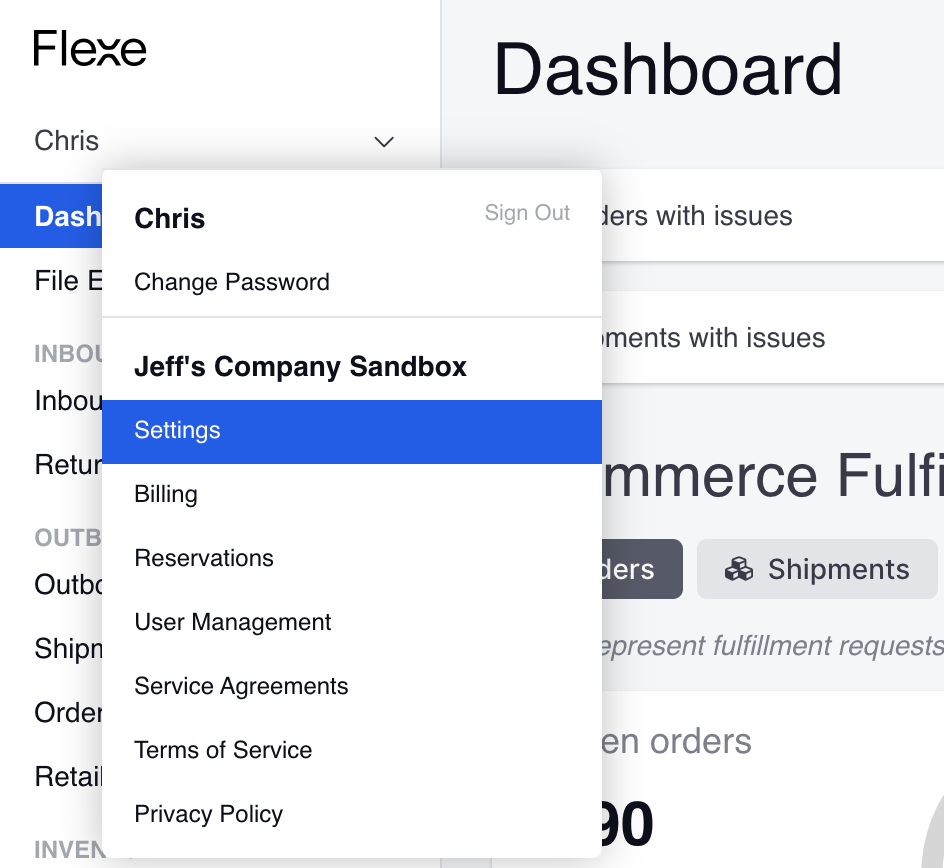
To access this page, log in to Flexe and open the dropdown next to your username. Then, select Settings:
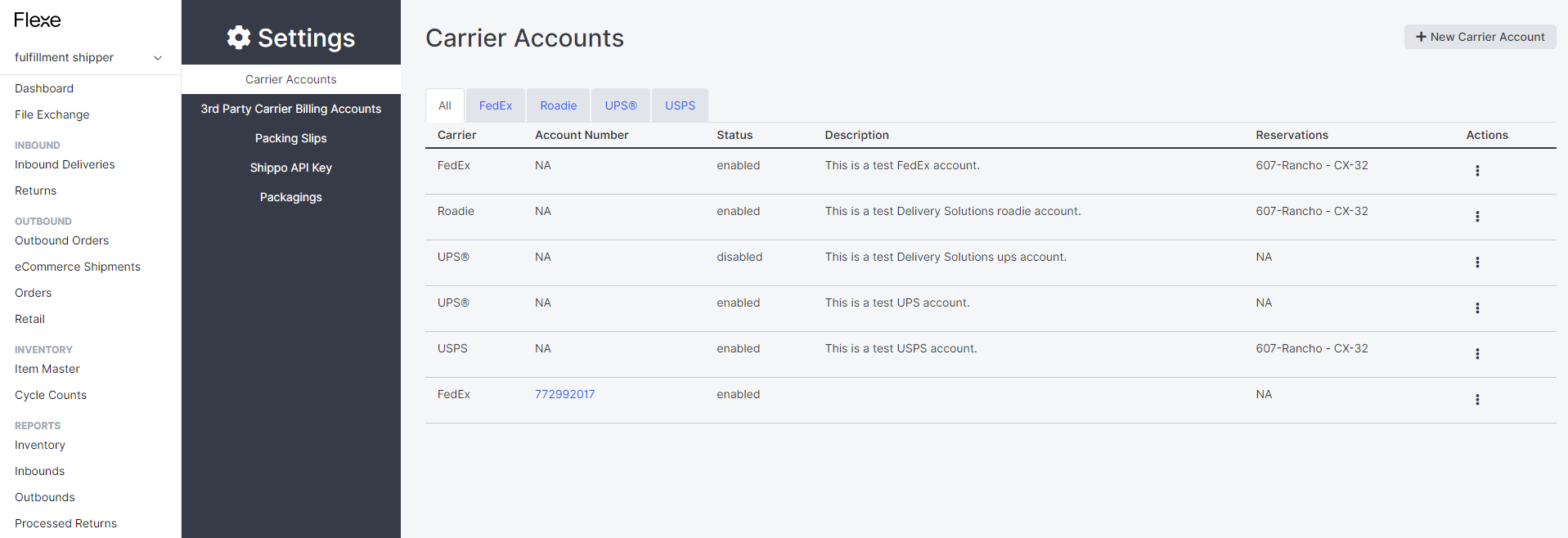
The Settings menu should automatically open to the Carrier Accounts page, which includes a list of all your linked carrier shipping accounts.
Note: To learn more about linking carrier accounts to Flexe, go to Setting Up Carrier Accounts.
You can use the tabs at the top of the page to view accounts by carrier. Open the Actions menu (three vertical dots) next to an account to access all available options and settings.
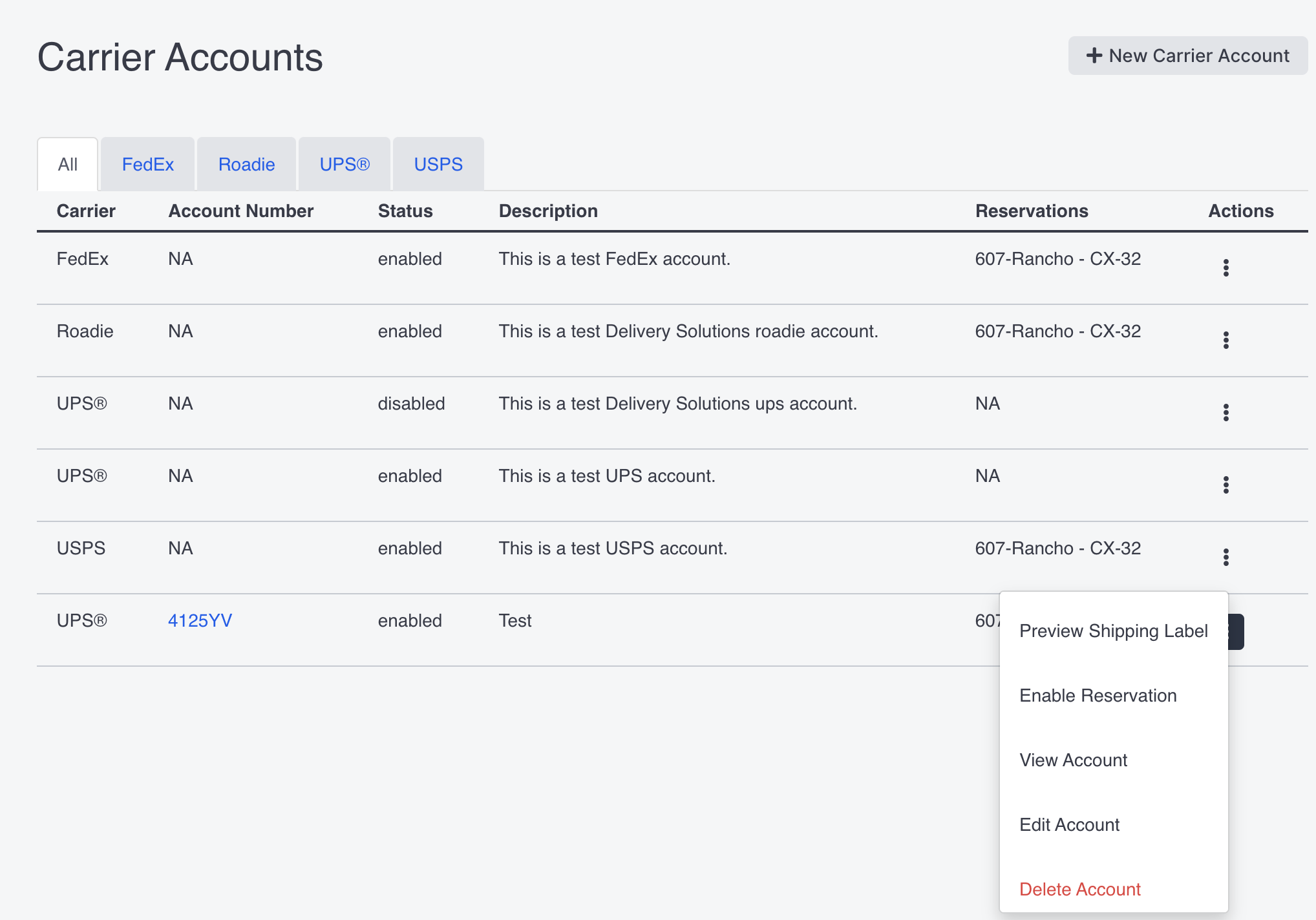
Preview Shipping Label
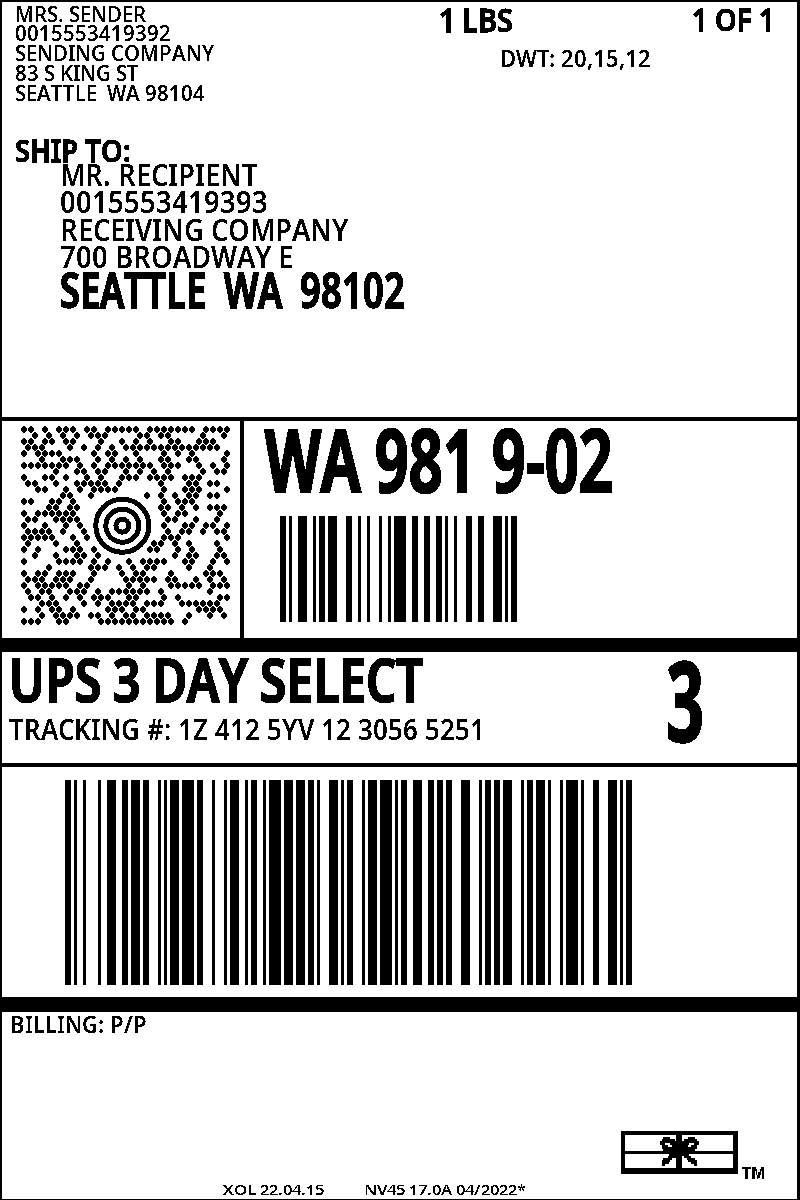
Select Preview Shipping Label from the Actions menu to view a sample shipping label for the carrier.
Enable Reservation
Select Enable Reservation from the Actions menu to manage which reservations the account is enabled for.
If there are no reservations enabled for the account, you'll have the option to add one. Use the dropdown to choose a reservation, then select Add.
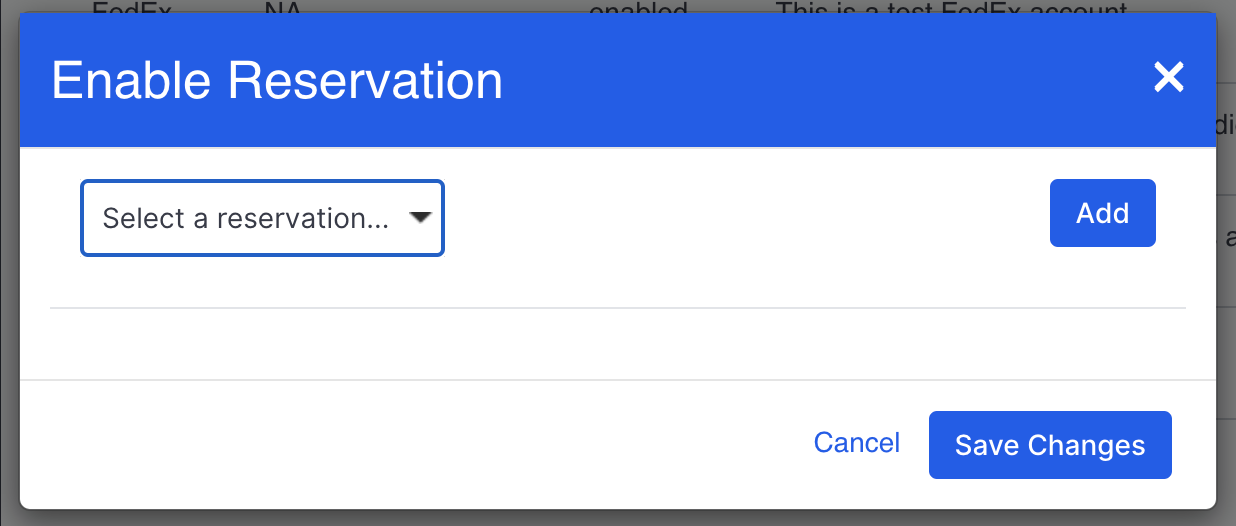
If you have more than one reservation, you can also use this dropdown to add multiple reservations to a carrier account--just choose the additional reservation(s), and select Add.
You can remove a reservation by selecting the red "X" icon next to it:

Make sure to select Save Changes to submit your changes and close the window.
View Account
Select View Account from the Actions menu to view details for the account.
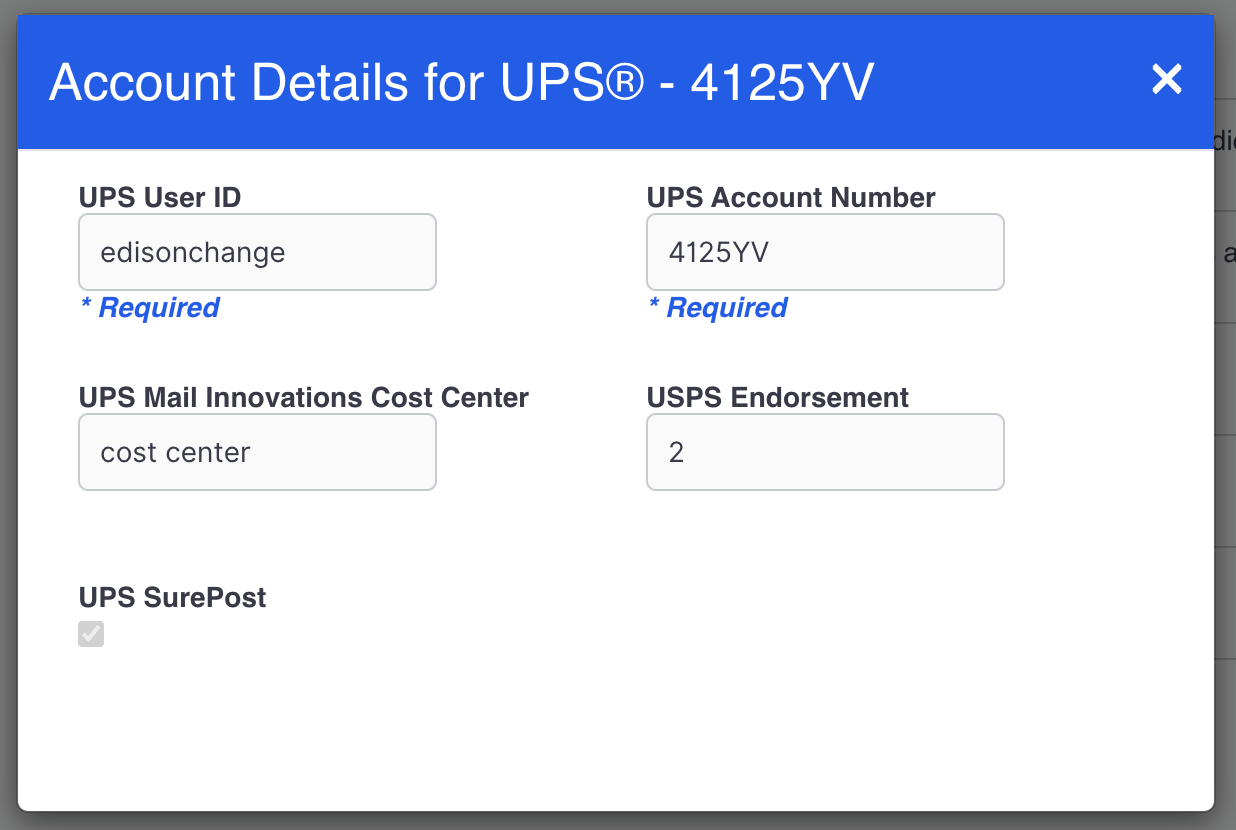
Keep in mind that you can only use this option to view account information--if you want to make changes, use the Edit Account option.
Edit Account
Select Edit Account from the Actions menu to make changes to the account, as needed. Use the text boxes to enter new or updated information, then select Update.
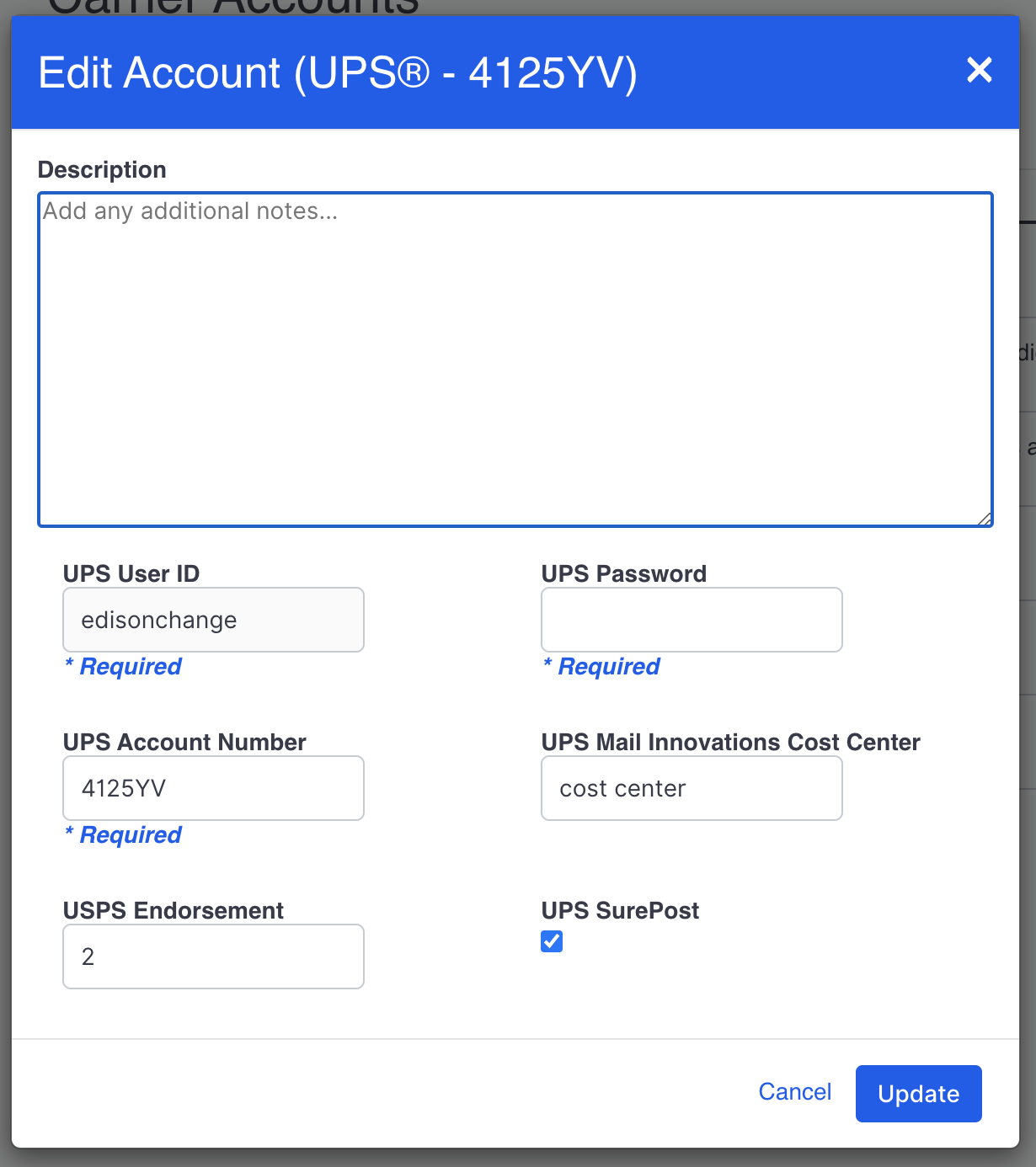
Note: Make sure you've entered information for any required fields before selecting Update.
Delete Account
Select Delete Account from the Actions menu to remove the carrier account from Flexe.
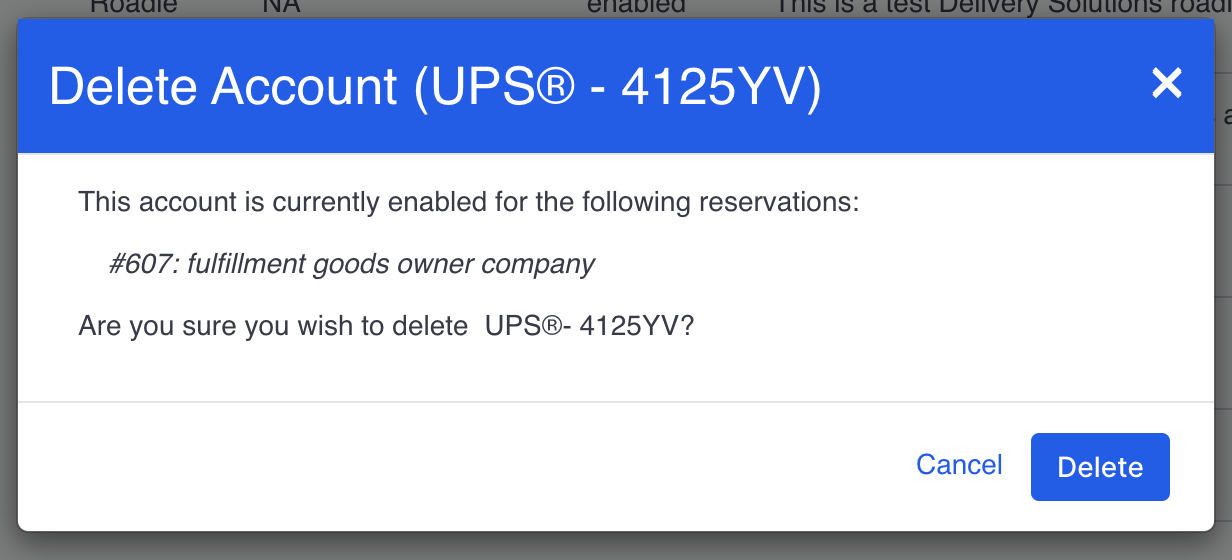
The confirmation window that opens shows all the reservations the carrier account is currently enabled for. To proceed with removing the account, select Delete.
Comments
0 comments
Please sign in to leave a comment.