How to edit inbound palletized deliveries after they've been created and submitted to a warehouse.
| IN THIS TOPIC |
To make changes to a palletized delivery after you've created it in Flexe:
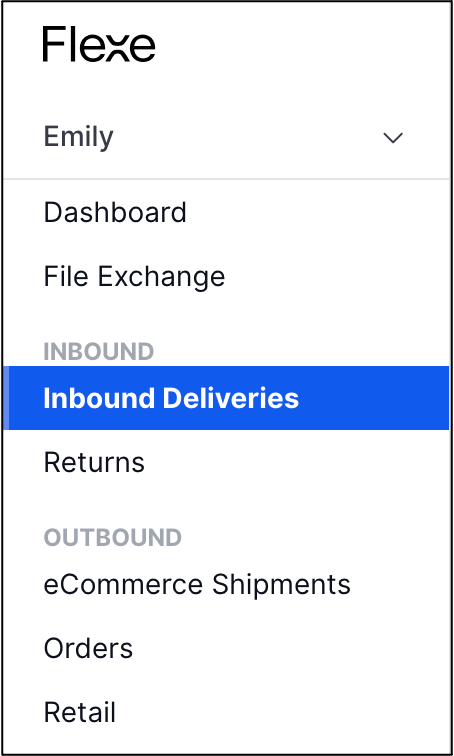
1. Select Inbound Deliveries from the left menu.
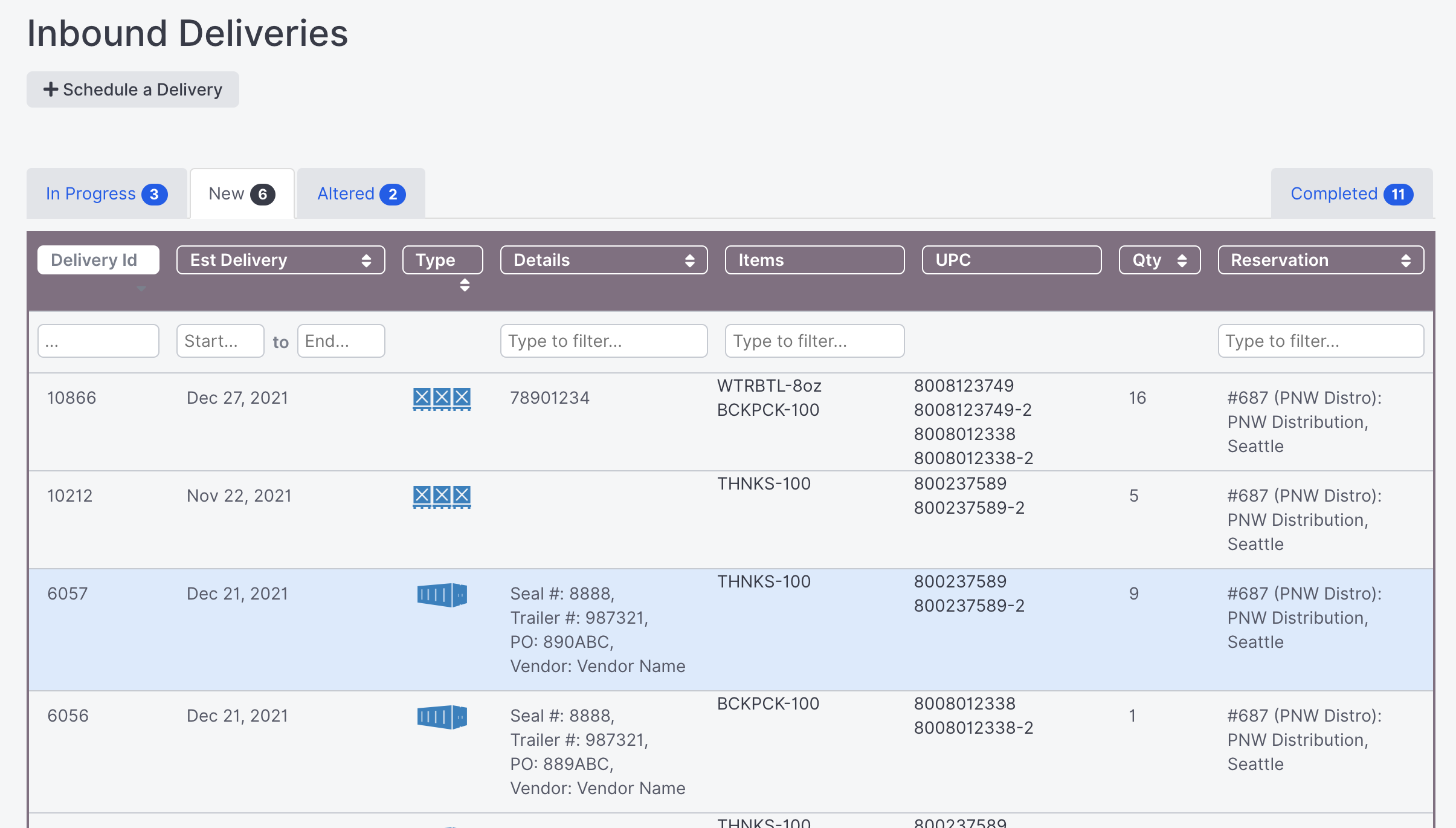
2. Select the delivery you want to edit.
If the delivery has not yet been confirmed by the warehouse, you can find it in the New tab. If the warehouse has already confirmed the delivery, you can find it in the In Progress tab.
Select the delivery to open the detail page, which is where you can access available edit options.
3. Make changes to the delivery, as needed.
Here's a quick overview of what you can edit from the delivery details:
Editing Delivery Information
Use the section at the top of the page to make changes to the Date and Shipment Description. Select the Edit icon  and enter your changes. Select the checkmark icon to confirm.
Keep in mind that whenever the delivery date is updated by the carrier, you'll also need to update the Date field in Flexe, so that the warehouse has the most current information.
Note: If you need to change something that doesn't have an edit option available, you can contact us at support@flexe.com for additional help with those changes.
Adding Pallets
First, select Add Pallets at the top of the page.
Then, use the text box under Add Inventory to search for the items you want to add. You can search by SKU or item description--you'll start getting results from your Item Master once you enter at least three characters.
Select the item from the results, and enter the Pallet Quantity. Then, select Confirm Additional Pallets.
Changing Carton Quantities & Removing Pallets
All items included in the delivery are listed toward the bottom of the page.
You can use the Edit icon next to the carton quantity to change the Carton Count per pallet. You can also select the "X" next to a pallet to completely remove it from the delivery.
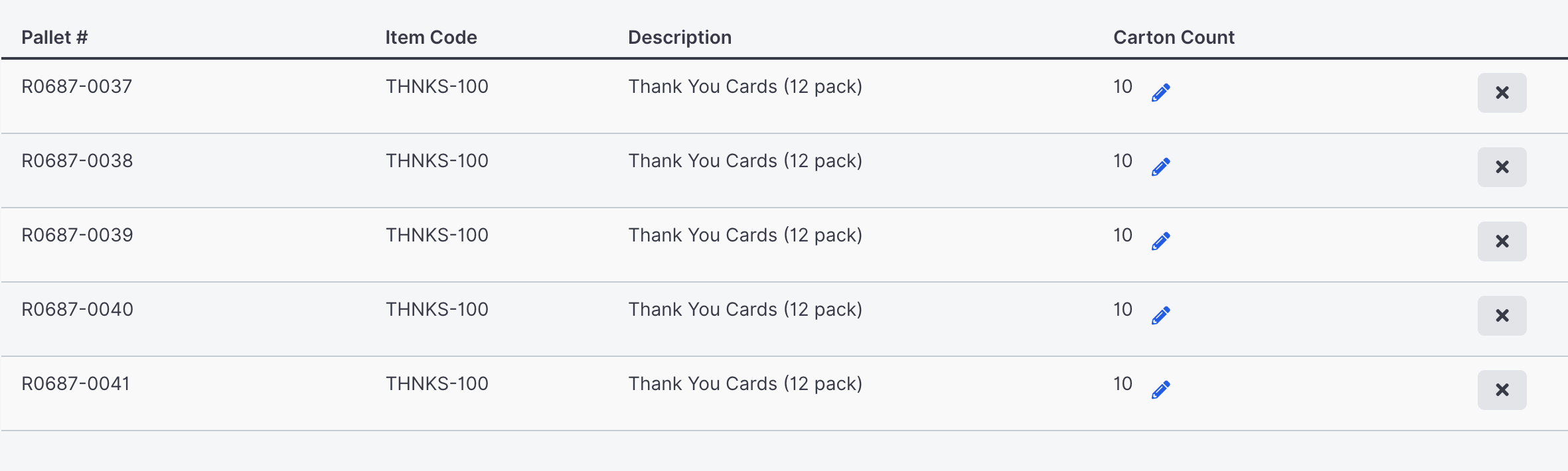
Note: You won't have the option to edit carton counts for deliveries that have already been confirmed and scheduled by the warehouse.
Canceling a Delivery
Select Cancel Delivery at the top of the page to cancel the delivery.
A warning message then shows onscreen asking you confirm. It explains that you'll be responsible for any fees or penalties that result, including warehouse restocking labor and transportation cancellation penalties.
Select Cancel this delivery if you want to proceed.
Viewing & Uploading Documents
You can find documents for the delivery in the Documents section.
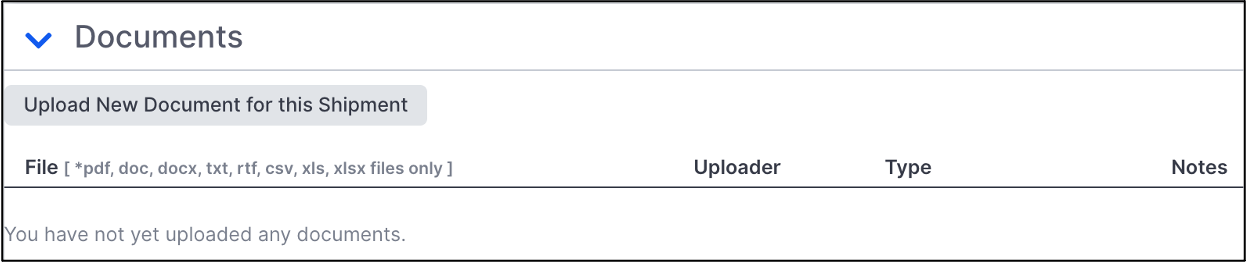
To add a document, select Upload New Document for this Shipment. In the window that opens, select Choose Files, then select the file(s) you want to add. Also make sure to select the Document Type. If needed, you can choose "Other," and then use the Description box to add a description.
Note: Make to use supported file types (.pdf, .doc, .docx, .txt, .rtf, .csv, .xls, .xlsx)
Printing Labels & Instructions
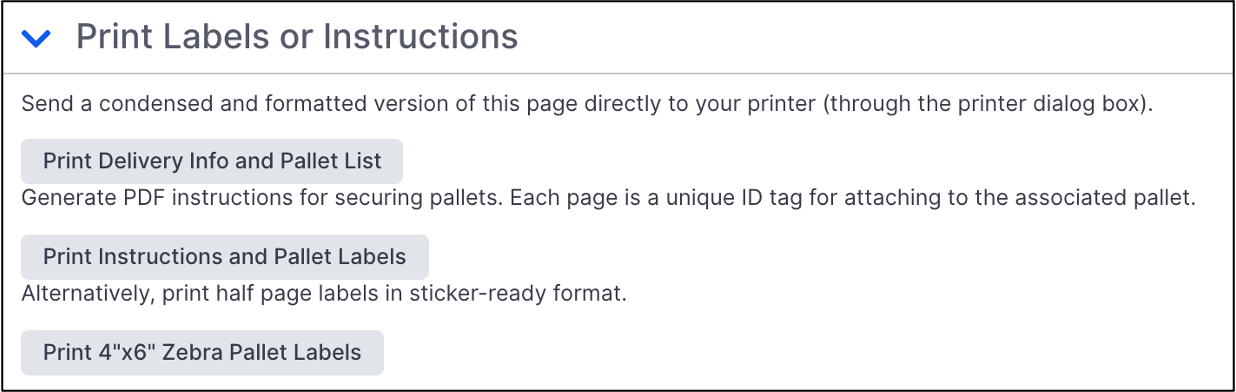
If you want to label pallets before shipping them to the warehouse, go to the Print Labels or Instructions section, where you can access and print a variety of labels.
Editing In Progress Deliveries
If you make changes to an In Progress delivery already confirmed and/or scheduled by the warehouse, that delivery moves to the Altered tab on the Inbound Deliveries page.

The warehouse will receive an email notification about the changes you made, and will need to re-confirm the delivery before proceeding.
Note: You can't make changes to completed or cancelled deliveries in the Completed tab on the Inbound Deliveries page. However, all information and corresponding documents for these deliveries remain available on the delivery details page as long as your reservation is open.
Comments
0 comments
Please sign in to leave a comment.